
Shopify apps that add reviews, live chat, popups, heatmaps, videos, personalization, upsells, or advertising scripts can slow down your storefront. These apps often load JavaScript, CSS, images, fonts, widgets, and requests from third-party servers.
That does not mean every app in these categories is slow or should be removed. Two apps offering the same feature can have very different performance costs.
I recommend judging each app using three questions:
- How much does it affect performance?
- Does it load on pages where customers need it?
- Does it generate enough revenue or operational value to justify its cost?
An app that adds 300 milliseconds but produces profitable subscriptions may be worth keeping. An abandoned popup app that loads on every page and produces nothing should probably go.
Can Shopify Apps Slow Down Your Store?
Yes, storefront apps can slow down a Shopify store when they add work to the customer’s browser.
An app may add:
- JavaScript files
- Stylesheets
- External fonts
- Tracking requests
- Images or videos
- Popups and floating buttons
- Product-page widgets
- Cart modifications
- Code that runs after customer interactions
- Connections to third-party servers
Third-party JavaScript can create extra network requests, delay page rendering, occupy the browser’s main thread, and introduce layout movement. Google recommends routinely auditing third-party scripts and removing those that do not provide clear value. Google’s third-party JavaScript guidance
However, not every installed Shopify app affects storefront speed.
An app used only inside Shopify Admin for accounting, order exports, inventory management, or customer support may have little or no effect on customer-facing pages.
Focus first on apps that visibly change your storefront or add tracking code.
Shopify Apps Most Likely to Affect Speed
The category alone cannot tell you whether a specific app is slow. Use this table to decide which apps to examine first.
| App category | What it may load | Pages commonly affected | What to check |
| Product reviews | Stars, photos, scripts and widgets | Product and collection pages | Does the full widget load before customers scroll to it? |
| Live chat | Chat launcher, tracking and message scripts | Usually every page | Can chat wait until interaction or a short delay? |
| Popups | Targeting scripts, forms and overlays | Usually every page | Is the popup active, useful and properly targeted? |
| Heatmaps | Session-recording and behavior scripts | Every tracked page | Do you need continuous recording? |
| Upsells | Recommendation logic and product widgets | Product, cart and checkout | Does it generate measurable additional revenue? |
| Personalization | Visitor detection and dynamic content | Multiple templates | Does it delay the first visible content? |
| Social feeds | Images, videos and external scripts | Homepage or landing pages | Can it be replaced with static content? |
| Video apps | Players, thumbnails and external connections | Homepage and product pages | Does the player load before the customer clicks? |
| Search apps | Search indexes, prediction and interface code | Header and search pages | Does the header script run on every page? |
| Product filters | JavaScript, product data and interface code | Collection pages | Does filtering respond quickly on mobile? |
| Loyalty programs | Launchers, customer data and widgets | Multiple templates | Is every widget needed on every page? |
| Currency tools | Location checks and conversion scripts | Usually every page | Does Shopify Markets already cover the requirement? |
| Translation apps | Language detection and translated content | Multiple templates | Are duplicate translation tools installed? |
| Advertising tools | Pixels, tags and audience scripts | Usually every page | Are old or duplicated pixels still firing? |
| A/B testing | Page variations and anti-flicker code | Tested pages | Is an old experiment still running? |
| Page builders | Layout CSS, scripts and custom sections | Pages built with the app | Are unused builder assets loading sitewide? |
| Subscription apps | Selling-plan selectors and account widgets | Product and account pages | Are scripts limited to subscription products? |
| Size charts | Popup code, tables and icons | Product pages | Does it load on products that do not need a chart? |
| Accessibility widgets | Overlays and interface scripts | Usually every page | Has the widget been evaluated for performance and usability? |
This is a priority list for testing, not a list of apps that must be deleted.
How Apps Affect Core Web Vitals
Shopify’s Web Performance reports use three Core Web Vitals to measure real customer experiences.
| Metric | Good target | How an app might affect it |
| LCP | 2.5 seconds or less | An app delays the main banner, product image or heading |
| INP | 200 milliseconds or less | Heavy JavaScript delays clicks, taps or typing |
| CLS | 0.1 or less | A widget appears late and moves existing content |
These targets should be met at the 75th percentile of recorded visits. Google’s Core Web Vitals guidance
Apps and LCP
Largest Contentful Paint measures how quickly the main visible content appears.
An app can contribute to poor LCP when it:
- Loads scripts before the main image
- Adds a large popup or banner above the fold
- Inserts a personalization layer before showing content
- Creates extra third-party connections during initial loading
- Blocks page rendering while checking customer information
If PageSpeed identifies a popup, promotional banner, or app-generated heading as the LCP element, review that app first.
Apps and INP
Interaction to Next Paint measures how quickly the page responds after an interaction.
An app can contribute to poor INP when:
- Several scripts respond to one click
- A product app recalculates many variants
- A filter app processes too much product data
- A cart app performs several updates
- A search app executes heavy JavaScript
- Chat, analytics, and tracking scripts compete for processing time
A page may look fully loaded but still feel slow when selecting a variant, opening the menu, or adding an item to the cart.
Apps and CLS
Cumulative Layout Shift measures unexpected page movement.
Apps commonly cause layout shifts when:
- Review stars appear after the product title loads
- A payment message pushes the Add to Cart button downward
- A loyalty banner appears above the page
- A chat launcher changes size
- A recommendation section loads without reserved space
- An app changes fonts after the first render
The solution may be to reserve space for the widget rather than remove the app.
Create an Inventory of Your Shopify Apps
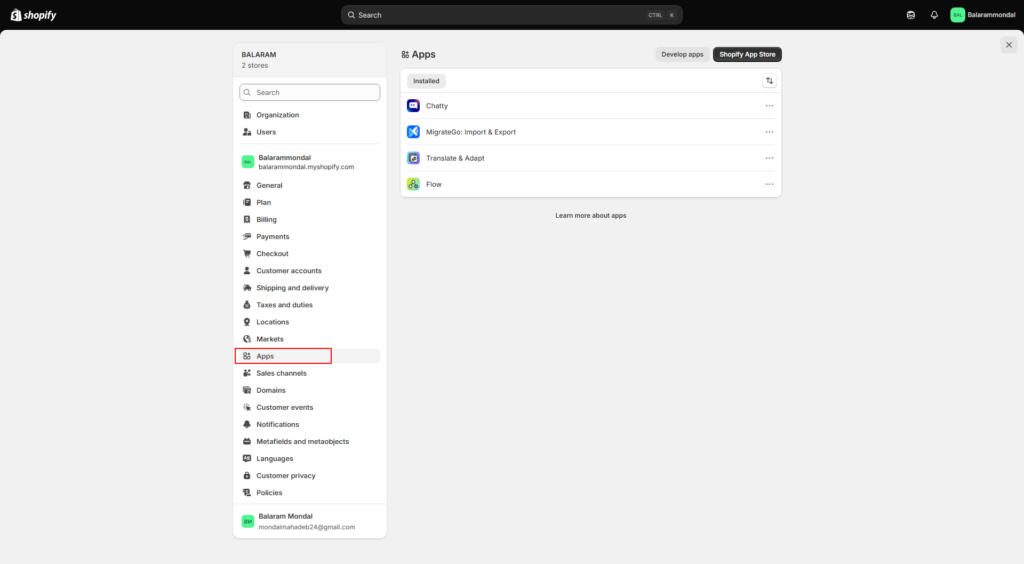
Before testing performance, make a list of every installed app.
Go to:
Shopify Admin → Settings → Apps
Record each app in a worksheet:
| App | Storefront feature | Pages affected | Business value | Test priority |
| Review app | Reviews and rating stars | Product and collection | High | Medium |
| Chat app | Customer chat | All pages | Low | High |
| Subscription app | Subscription purchases | Selected products | High | Medium |
| Old popup app | Inactive email popup | All pages | None | Remove |
| Heatmap app | Session recordings | All pages | Temporary | High |
| Accounting app | Order accounting | Admin only | High | Low |
Use these business-value labels:
- High: Produces sales or supports an essential operation.
- Medium: Useful, but its financial contribution is unclear.
- Low: Rarely used or easily replaced.
- None: Inactive, duplicated, abandoned, or no longer required.
Test low-value storefront apps first. Do not begin by disabling the payment, subscription, review, or product-option app that supports a large part of your revenue.
Check Your Current Shopify Performance
You need a baseline before changing anything.
Step 1: Open Shopify’s Web Performance Reports
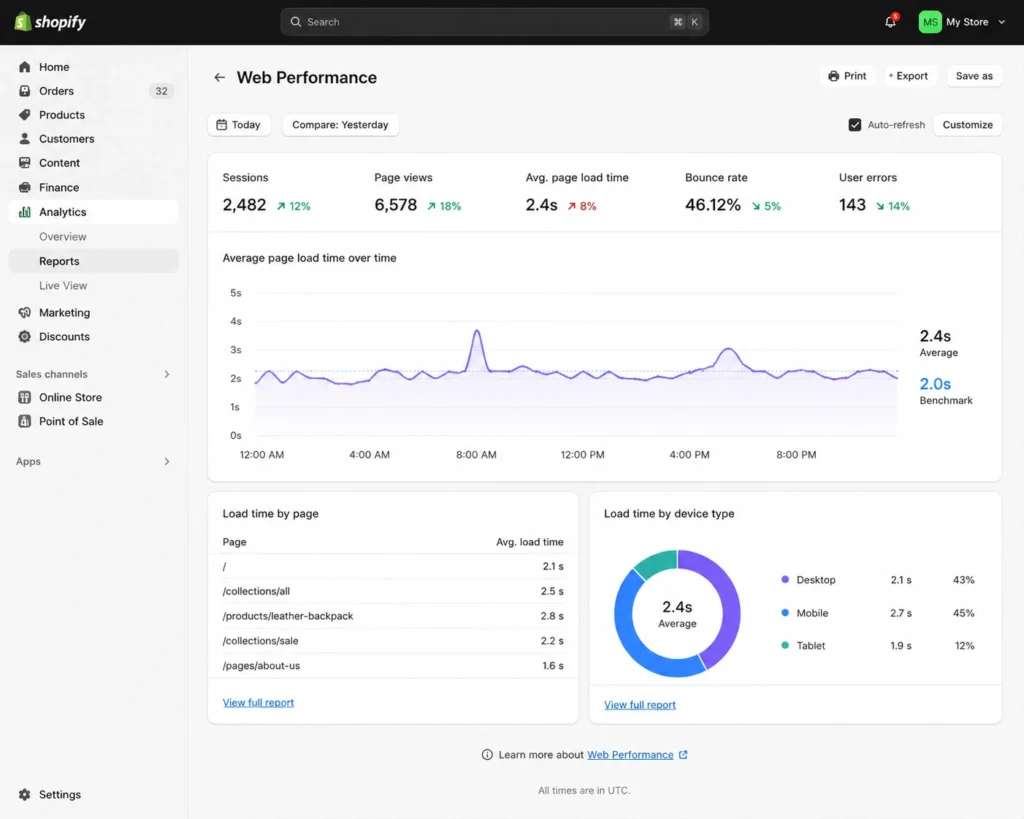
In Shopify Admin:
- Go to Analytics → Reports.
- Search for reports containing “contentful,” “next,” or “cumulative.”
- Open the relevant Web Performance report.
- Review results by date, page type, URL and device.
You can also open the Web Performance summary from the Themes area.
Shopify’s reports show how changes such as app installations, theme updates, and new code affected Core Web Vitals over time. Shopify Web Performance reports
Look for a performance decline close to the date an app was installed or activated. That timing is evidence worth investigating, but it does not prove that the app was the only cause.
Step 2: Test Important URLs
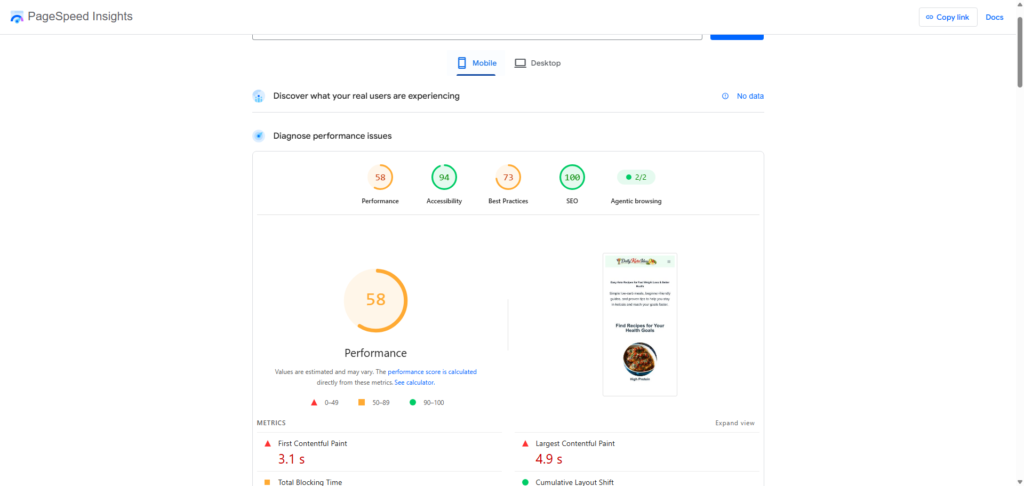
Test at least:
- Homepage
- Most-visited collection
- Bestselling product
- Product with the most app features
- Important landing page
Run each URL through Google PageSpeed Insights three times on mobile. Record the middle result.
Use this completed example as a model:
| Page | Mobile score | LCP | TBT | CLS | First issue to investigate |
| Homepage | 54 | 4.1 sec | 380 ms | 0.08 | Video and popup scripts |
| Collection | 68 | 2.9 sec | 260 ms | 0.04 | Filter JavaScript |
| Main product | 57 | 3.6 sec | 430 ms | 0.18 | Reviews and payment widget |
| Simple product | 76 | 2.4 sec | 170 ms | 0.05 | No urgent problem |
| Landing page | 61 | 3.2 sec | 310 ms | 0.07 | Page-builder assets |
Total Blocking Time is a laboratory metric that can help identify heavy JavaScript. Use Shopify’s real-user INP result when enough visitor data is available.
Step 3: Check Third-Party Code
In PageSpeed Insights, review these diagnostics when available:
- Reduce the impact of third-party code
- Reduce unused JavaScript
- Minimize main-thread work
- Avoid enormous network payloads
- Reduce unused CSS
- Largest Contentful Paint element
- Avoid large layout shifts
Open the third-party section and note the company names or domains using the most transfer size and main-thread time.
A third-party domain may belong to an app, analytics provider, advertising service, video host, or customer-support tool. Do not remove code until you know what it controls.
Safely Test Whether an App Is Slowing the Store
Never begin by uninstalling several live apps at once. You may break product forms, tracking, discounts, subscriptions, or the cart.
Use this safer process.
Step 1: Duplicate Your Live Theme
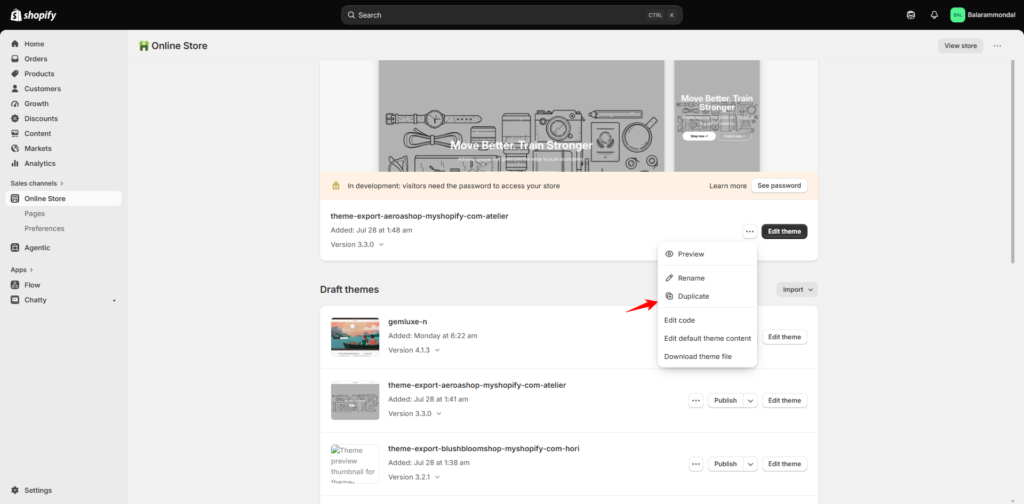
Go to:
Shopify Admin → Online Store → Themes
Open the menu beside your published theme and select Duplicate.
Give the duplicate a clear name, such as:
Speed Test – Before App Changes
This gives you a safer place to test theme app blocks and embeds.
A duplicate theme does not create a complete staging store. Some apps, scripts, or integrations may still behave differently in preview. Treat it as a testing layer, not a perfect copy of production.
Step 2: Record the Baseline
Test the same product or page three times and record:
- Mobile PageSpeed score
- LCP
- Total Blocking Time
- CLS
- Number of requests
- Transfer size
- Third-party main-thread time
Also record whether these features work:
- Navigation
- Search
- Variant selection
- Add to Cart
- Cart drawer
- Product reviews
- Subscription options
- Currency selection
- Analytics
- Advertising pixels
Step 3: Disable One App Embed
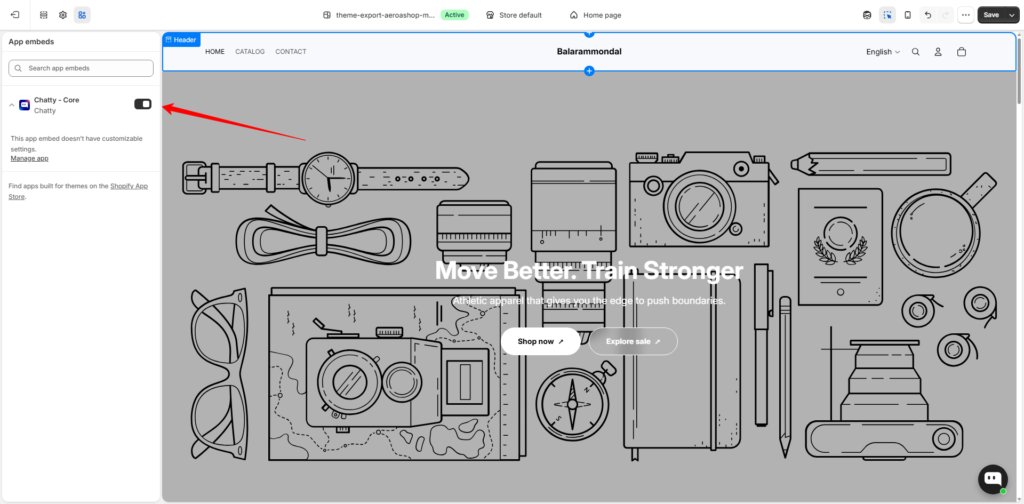
To manage app embeds:
- Go to Online Store → Themes.
- Open the duplicate theme in the theme editor.
- Select App embeds.
- Find the app you want to test.
- Turn off its embed.
- Save the theme.
Shopify allows merchants to activate, deactivate and customize app embeds through the theme editor. Shopify’s theme-app guidance
Some apps use app blocks instead of app embeds.
To test an app block:
- Open the relevant page template in the theme editor.
- Locate the app block in the section list.
- Hide or remove the block from the duplicate theme.
- Save your changes.
Do not remove a block from the live theme until you have confirmed what it does.
Step 4: Retest the Same Page
Run the same URL or preview under similar conditions.
Compare the median of three tests rather than selecting the best result.
| Measurement | Before disabling | After disabling | Difference |
| Mobile score | 55 | 67 | +12 |
| LCP | 3.8 sec | 3.1 sec | 0.7 sec faster |
| TBT | 490 ms | 240 ms | 250 ms lower |
| CLS | 0.16 | 0.07 | Improved |
| Requests | 164 | 137 | 27 fewer |
If the improvement appears in repeated tests, the app is a likely contributor.
One test is not enough because Lighthouse results naturally vary.
Step 5: Test the Feature’s Business Value
Technical cost is only half of the decision.
For an upsell app, compare:
- Revenue generated
- Number of accepted offers
- Average order value increase
- Monthly app cost
- Effect on product and cart performance
For a popup app, compare:
- Email signups
- Signup conversion rate
- Revenue from subscribers
- Mobile closing problems
- Performance cost
For live chat, compare:
- Conversations started
- Sales assisted
- Support tickets prevented
- Customer satisfaction
- Main-thread and network cost
Keep the app if its value justifies the cost and no lighter configuration or replacement is available.
What to Do With a Slow but Valuable App
Do not immediately uninstall an app that makes money.
Try these options first.
Load It Only Where Needed
A size-chart app does not need to run on blog posts. A subscription selector may not need to load on products without selling plans.
Ask the app developer whether scripts can be limited by:
- Page template
- Product
- Collection
- Customer state
- Device
- Customer interaction
Shopify states that features such as reviews do not always need to load immediately when a customer first visits the store. Shopify’s web-performance overview
Delay Below-the-Fold Features
A review list far below the product form may be loaded after important product content. The rating summary near the title may still need to appear early.
Possible candidates for delayed loading include:
- Full review feeds
- Social galleries
- Recommendation carousels
- Video players
- Chat interfaces
- Loyalty panels
- Recently viewed products
Do not delay product forms, essential consent controls, or features customers need immediately.
Replace Video Players With Click-to-Load Previews
Instead of loading a complete YouTube, Vimeo, or third-party video player immediately, show a lightweight thumbnail with a play button. Load the player after the customer clicks.
This preserves video while avoiding much of its initial cost.
Reserve Space for App Widgets
If an app causes layout movement, give its container a fixed or minimum height.
This can help with:
- Review stars
- Installment messages
- Loyalty points
- Product badges
- Recommendation blocks
- Subscription selectors
A developer should verify the correct dimensions on mobile and desktop.
Ask the App Developer for Help
Send the developer:
- Affected page URL
- PageSpeed screenshot
- Third-party domain shown in the report
- Core Web Vital affected
- Before-and-after test results
- Theme name and version
Ask whether the app supports deferred loading, conditional loading, reduced features, or a lighter theme app extension.
Shopify recommends that app entry points remain small and that additional functionality load on interaction when possible. Shopify’s app-performance practices
How to Remove an Unused Shopify App
Before uninstalling an app:
- Export any data you may need.
- Read the app’s uninstall instructions.
- Turn off active campaigns, rules or automations.
- Duplicate your theme.
- Record where its blocks and widgets appear.
- Confirm that another feature does not depend on it.
To uninstall:
- Go to Shopify Admin → Settings → Apps.
- Open the menu beside the app.
- Select Uninstall.
- Choose an uninstall reason if desired.
- Confirm the removal.
These are Shopify’s current documented uninstall steps. Shopify app-uninstall instructions
After removing it, clear your own browser cache or use an incognito window and test the storefront again.
Does Uninstalling an App Remove All Its Code?
Not always.
Modern theme app extensions are designed to avoid permanently changing theme code. Older apps and manually installed integrations may have inserted Liquid, JavaScript, CSS, or snippets directly into the theme.
Shopify warns that traditional integrations can leave “ghost code” after uninstalling, which may affect theme quality and performance. Shopify’s theme-app migration documentation
Possible signs of leftover app code include:
- Requests to an uninstalled app’s domain
- Missing-file errors in the browser console
- Empty widget containers
- Old snippets in the theme
- App names inside theme files
- Broken Liquid includes
- Unused JavaScript and CSS assets
- Comments naming a deleted app
Do not delete unfamiliar code simply because it contains an app’s name. Some code may have been customized or shared with another feature.
Ask the former app developer for cleanup instructions or have a Shopify developer inspect the theme.
Check for Leftover App Code
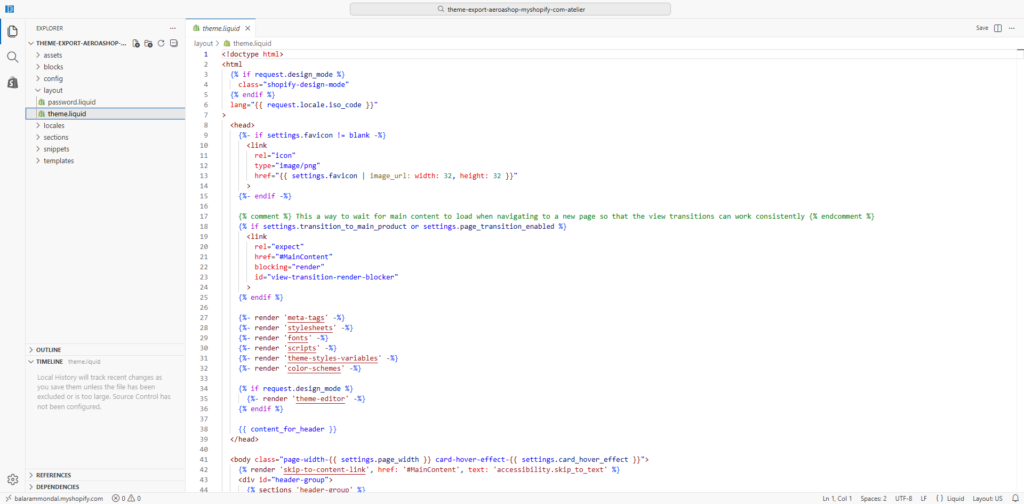
This part involves theme code. Create a backup first.
Go to:
Shopify Admin → Online Store → Themes → Theme menu → Edit code
Use the code editor’s search function to search for:
- The app’s name
- The app company’s name
- Its external domain
- Snippet names from its uninstall documentation
Common locations include:
- theme.liquid
- snippets
- sections
- assets
- Product templates
- Collection templates
- App-specific Liquid files
Do not remove code from the published theme without understanding it and testing the change on a duplicate.
If you are unsure, stop and contact a developer. A few unused lines are safer than a broken product form or cart.
Common App-Cleanup Mistakes
Blaming the Number of Apps
A store with 25 admin-only or well-built apps may perform better than a store with five poorly implemented storefront apps.
Count what loads, not only what is installed.
Removing Profitable Features to Chase 100
A PageSpeed score of 100 is not worth losing subscriptions, reviews, accessibility, analytics, or profitable upsells.
Measure business impact alongside speed.
Disabling Several Apps Together
If the score improves, you will not know which app caused the change.
Test one app at a time.
Testing Only the Homepage
Many apps load only on product, collection, cart, or account pages.
Test the pages where the app actually works.
Trusting One PageSpeed Run
Run every test at least three times and compare the median.
Installing a “Speed App” Without Understanding It
Some tools hide content from tests, delay important code, or make aggressive changes that break tracking and customer interactions.
Ask exactly what the app changes before installing it.
Deleting Leftover Code Without a Backup
A snippet that looks unused may support an important product or cart feature.
Duplicate the theme first.
Ignoring Analytics and Pixels
Several marketing platforms may add duplicated tracking through apps, theme code, customer events, or a tag manager.
Check that each platform fires only as intended.
Before-and-After Checklist
Before Making Changes
- List every installed app.
- Mark which apps affect the storefront.
- Assign a business value to each app.
- Identify the pages where each app loads.
- Duplicate the published theme.
- Test five important pages three times.
- Record Core Web Vitals.
- Record conversion and app-generated revenue.
- Confirm that analytics and pixels work.
- Export important app data.
After Making Changes
- Retest the same pages three times.
- Compare the median results.
- Test navigation and search.
- Test all product options.
- Add products to the cart.
- Start checkout.
- Test discount codes.
- Check subscriptions and upsells.
- Confirm reviews still appear.
- Verify analytics and advertising events.
- Check mobile and desktop layouts.
- Monitor conversion rate and revenue.
Seven-Day Shopify App Cleanup Plan
Day 1: Build Your App Inventory
List every app, its function, affected pages, monthly cost and business value.
Day 2: Record Performance
Test your homepage, collection, bestselling product, heaviest product and landing page.
Day 3: Remove Obvious Waste
Uninstall inactive, duplicated or abandoned apps after exporting required data.
Day 4: Test App Embeds
Disable one low-value app embed on a duplicate theme. Retest the affected pages.
Day 5: Review Valuable Apps
Ask whether reviews, chat, video, recommendations and loyalty features can load later or only on required templates.
Day 6: Check for Leftover Code
Follow official uninstall documentation or ask a developer to inspect old theme integrations.
Day 7: Validate the Store
Test the complete purchase journey, analytics, advertising events and conversion data.
Record the final results:
| Measurement | Before cleanup | After cleanup | Desired outcome |
| Mobile PageSpeed score | 52 | 68 | Higher and stable |
| LCP | 4.0 sec | 2.9 sec | Closer to 2.5 sec |
| INP | 310 ms | 190 ms | 200 ms or less |
| CLS | 0.14 | 0.08 | 0.1 or less |
| Conversion rate | 2.1% | 2.2% | Maintained or improved |
| Add-to-cart function | Working | Working | No regression |
| Analytics events | Accurate | Accurate | No data loss |
The numbers above are examples. Use results from your own store.
When Should You Hire a Shopify Developer?
You can usually manage app inventories, app embeds and standard uninstall steps without coding.
Consider professional help when:
- An uninstalled app still loads files.
- You find unknown code in theme.liquid.
- Product options stop working.
- The cart behaves differently after cleanup.
- Tracking events disappear or fire twice.
- Several apps modify the same feature.
- Your theme uses older manual app integrations.
- You need scripts to load only on specific templates.
- A valuable app has a high performance cost.
- Core Web Vitals remain poor after basic cleanup.
Ask for a report that identifies the exact script, affected templates, proposed change, expected benefit, possible risk and testing requirements.
Avoid anyone who promises a permanent score of 100 without examining your theme, apps and customer journey.
My Recommended App Rule
I use a simple rule when reviewing Shopify apps:
Keep an app when it provides measurable value and its performance cost is reasonable. Remove it when it is unused, duplicated, replaceable, or creates more friction than value.
Do not aim for the fewest possible apps. Aim for the least unnecessary storefront code.
A useful subscription app, review system or search tool may deserve its place. An old popup, expired A/B test, duplicate pixel or unused social feed does not.
FAQs
Do all Shopify apps slow down a store?
No. Admin-only apps may not affect storefront performance, and well-built storefront apps can have a small impact. Test what each app loads before making a decision.
How many Shopify apps are too many?
There is no universal limit. Ten heavy storefront apps can be worse than 30 apps that do not load customer-facing code. Judge request count, JavaScript execution, Core Web Vitals and business value.
Which Shopify apps slow stores down the most?
Chat, reviews, popups, heatmaps, video, personalization, filters and upsell tools can be demanding, but performance varies by app and configuration. Test the specific app rather than blaming its category.
Will deleting an app improve Shopify speed?
It may improve speed if the app loads significant storefront resources. The improvement may be small if the app is admin-only or if leftover code continues loading after uninstalling it.
Can an uninstalled Shopify app still slow my theme?
Yes. Older or manually installed apps may leave Liquid, JavaScript, CSS or snippets behind. Modern theme app extensions are less likely to leave permanent theme changes.
How can I see which app is slowing my store?
Start with Shopify’s Web Performance reports and PageSpeed Insights. Review third-party code, duplicate your theme, disable one app embed and compare three before-and-after tests.
Should I remove my review app to improve speed?
Usually not without testing its value. Reviews can support customer trust and conversions. First check whether the full review widget can load later while keeping rating stars visible.
Can speed-optimization apps make problems worse?
Yes. Aggressive script delays can break product forms, analytics, consent tools, cart features or app widgets. Understand every change and test the full purchase journey.
How often should I audit Shopify apps?
Review apps every three months and after major campaigns, redesigns or app installations. Also check performance when Core Web Vitals or conversion rates suddenly decline.