A slow Shopify store can frustrate shoppers, reduce conversions, and make it harder for customers to browse products. The problem is usually not Shopify’s hosting. In most cases, performance suffers because of large images, excessive apps, complicated theme code, videos, tracking scripts, or poorly optimized mobile layouts.
Shopify measures performance through Core Web Vitals: loading speed, responsiveness, and visual stability. The platform recommends balancing useful storefront features with their performance cost rather than chasing a perfect score. Shopify’s web performance guidance confirms that apps, theme code, third-party services, images, and videos can all affect performance.
Here are 15 common reasons your Shopify store may be slow and what you can do about each one.
Why Is My Shopify Store So Slow?
Your store feels slow when a visitor’s browser must download, process, and display too many resources. Every image, font, app widget, animation, and tracking script adds work.
Performance can also vary across your store. A simple homepage may load quickly, while a product page containing videos, reviews, recommendations, subscriptions, and variant selectors performs poorly.
Test several page types before deciding what needs to be fixed.
1. Large, Unoptimized Images

Oversized images are among the most common Shopify speed problems. A photo uploaded directly from a camera may be several megabytes even though your theme displays it at a much smaller size.
Resize images to the maximum dimensions your theme requires and compress them before uploading. Avoid using PNG for regular product photography because PNG files are usually larger than JPEG files.
Use Shopify’s responsive image features so mobile users receive smaller images instead of downloading desktop-sized files. This improves speed without noticeably reducing image quality.
2. Too Many Shopify Apps

Shopify apps can add reviews, pop-ups, subscriptions, live chat, upsells, wish lists, and tracking. However, many apps also add JavaScript, CSS, fonts, and external server requests.
The total number of apps is not the only issue. Two badly optimized storefront apps can create more problems than ten lightweight or backend-only apps.
Review each app and ask whether it supports sales or essential operations. Remove duplicated features, test the store before and after disabling an app, and check whether uninstalled apps have left scripts or snippets in your theme.
3. Heavy Shopify Theme
Some themes include large sliders, animations, quick-view windows, product swatches, predictive search, mega menus, and elaborate transitions. These features may look impressive but require additional code.
Test a clean copy of your current theme without your normal apps and customizations. If the clean version performs well, the problem is probably your modifications. If it remains slow, the theme itself may be too heavy.
Before changing themes, remember that a new theme requires design, content, app, and conversion testing. Optimize your existing theme first unless its architecture is clearly the problem.
4. Too Many Third-Party Scripts
Advertising pixels, analytics platforms, heatmaps, affiliate tools, chat widgets, social feeds, and personalization services all use third-party scripts.
Each script may force the browser to contact another server. If that service responds slowly, its widget can delay your store or block important content.
Remove duplicate tracking codes and unnecessary marketing tools. Load non-essential scripts asynchronously, defer them, or trigger them after interaction where appropriate. Be careful when changing analytics or advertising scripts because incorrect implementation can reduce tracking accuracy.
5. Poor Liquid Code Optimization
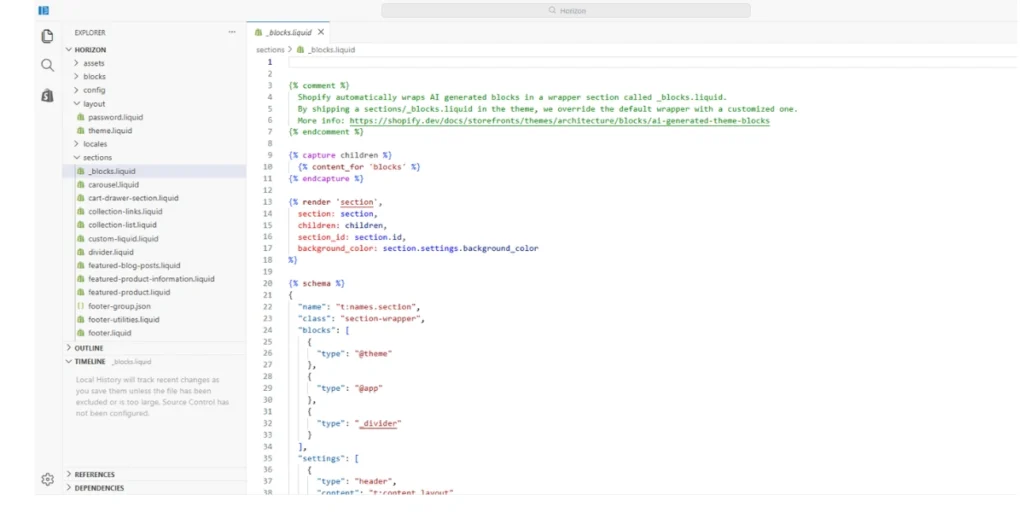
Liquid is Shopify’s template language. Inefficient Liquid can increase the time required to generate a page before it reaches the visitor’s browser.
Common problems include deeply nested loops, repeatedly processing large collections, unnecessary calculations, and rendering the same snippet multiple times.
Simplify loops and calculate reusable information outside them. Avoid loading product or variant information that the page does not need. Developers can use Shopify Theme Inspector to find slow Liquid operations and identify the templates or snippets requiring attention.
6. Too Many Fonts and Icons

Every font family, weight, and style can require another download. Loading several families with regular, medium, semibold, bold, and italic variations increases page weight.
Use one or two font families and only the weights visible in your design. A system font is generally the fastest option because the device already has it.
If you use custom fonts, choose WOFF2 files, preload only the most important font, and use font-display: swap. For icons, use lightweight SVG files instead of loading a complete icon library for a few symbols.
7. Video Backgrounds and Auto-Playing Media
Homepage video backgrounds consume significant bandwidth, especially when they autoplay at a high resolution. They can be particularly slow for mobile shoppers using weaker connections.
Compress the video, remove unnecessary audio, provide a lightweight poster image, and avoid loading the complete file until it is needed. Consider serving a smaller version to mobile devices.
If the video does not clearly explain the product or support conversions, replace it with a strong static image. Visual impact is not valuable when customers leave before the page becomes usable.
8. No Lazy Loading

Lazy loading delays below-the-fold images and videos until a visitor scrolls close to them. Without it, a long homepage or collection may attempt to download dozens of media files immediately.
Enable native lazy loading for images that are not initially visible. Do not lazy-load your main homepage banner or primary product image when it appears above the fold.
Shopify’s official theme performance recommendations specifically advise lazy-loading below-the-fold images while loading above-the-fold content normally.
9. Too Many Redirects
Redirects send customers and search engines from an old URL to a new one. They are important after changing product handles, deleting pages, or migrating a website, but redirect chains create unnecessary steps.
For example:
Old URL → Temporary URL → Current URL
Update internal links so they point directly to the final page. Replace chains with one redirect from the original URL to the destination.
Do not delete valuable redirects simply to improve performance. Proper redirects preserve working backlinks, customer bookmarks, and SEO value.
10. Broken Links and 404 Errors

Broken links send visitors to pages that no longer exist. Missing images, scripts, and fonts can also create failed requests that waste browser resources.
Check navigation menus, blog posts, product descriptions, collection links, and footer links regularly. Repair incorrect URLs, restore missing resources, or create a relevant redirect when content has permanently moved.
Avoid sending every missing page to the homepage. Redirect only when there is a closely related destination; otherwise, create a useful 404 page with search and navigation options.
11. Excessive Collection and Product Filtering
Large catalogs often use filters, product swatches, quick-add buttons, review stars, badges, and variant information on every product card. These features can make collection pages slow and difficult to use.
Limit how many products appear initially and avoid showing every variant as a separate card. Load filtering code only on collection and search pages.
Use Shopify’s native filtering when it meets your needs. Add a third-party filtering system only when its additional functionality provides a meaningful benefit for customers.
12. Large CSS and JavaScript Files
Themes and apps frequently load code that the current page does not need. A product page might download scripts used only for a homepage slideshow, popup, or abandoned feature.
Large JavaScript files are especially damaging because the browser must download, parse, and execute them.
Remove unused code, split scripts by page or feature, and load assets conditionally. Use defer or async where appropriate. Minification helps reduce file size, but removing unnecessary code usually creates a larger improvement.
Always duplicate your theme before editing its files.
13. Too Many Homepage Sections
A homepage containing multiple sliders, videos, featured collections, reviews, social feeds, blog posts, pop-ups, and animations can become both slow and confusing.
More sections do not automatically create more sales. Focus on a clear value proposition, featured products or collections, essential trust signals, brief brand information, and a strong call to action.
Use analytics and heatmaps to identify sections visitors rarely view or interact with. Remove repetitive content instead of forcing shoppers to scroll through everything your business offers.
14. Slow Third-Party APIs
Currency converters, review platforms, shipping calculators, inventory tools, recommendations, and personalization systems may request information from external APIs.
If an external service responds slowly or fails, its storefront feature may load late or disrupt the page layout.
Optional widgets should not block the main product content. Load them asynchronously, provide fallback content, and cache suitable information when possible. If the same service repeatedly creates delays, contact its provider or replace it with a faster solution.
15. Poor Mobile Optimization
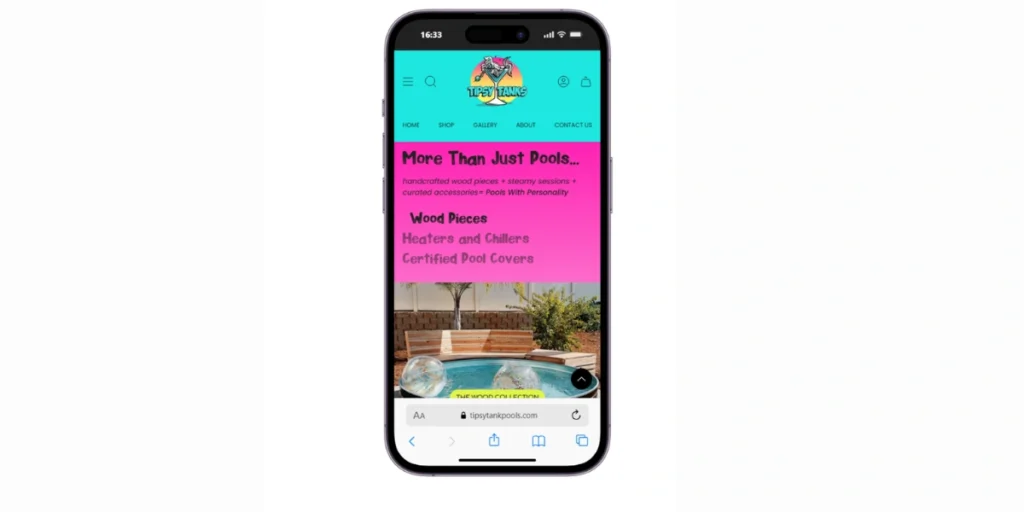
A store that feels fast on a powerful desktop can still perform badly on an average phone. Mobile visitors may have slower processors, smaller screens, and less reliable internet connections.
Check for oversized banners, autoplay videos, intrusive pop-ups, large sticky elements, layout shifts, and buttons that are difficult to tap.
Test your homepage, collections, products, cart, and search on real mobile devices. Mobile optimization should include usability—not only smaller image files. Customers must be able to select variants and reach checkout without delays or confusion.
How to Check What’s Slowing Down Your Shopify Store
Test your homepage, collection pages, and product pages with several tools. Look for problems that appear repeatedly rather than relying on one score.
Google PageSpeed Insights
PageSpeed Insights tests mobile and desktop performance. Check Core Web Vitals, large images, unused code, and scripts blocking page rendering.
GTmetrix
GTmetrix provides a loading waterfall that helps identify oversized files, slow third-party services, and redirect chains.
Lighthouse in Chrome DevTools
Lighthouse audits performance, accessibility, SEO, and best practices. Run several tests in an incognito window for more reliable results.
Shopify Theme Inspector
Theme Inspector helps developers find slow Liquid templates, loops, and snippets. It is particularly useful for heavily customized themes.
Shopify Admin Performance Report
Shopify’s Web Performance reports use real visitor data. Use them to monitor loading speed, responsiveness, and visual stability after changing apps, content, or your theme.
How to Speed Up Your Shopify Store
Prioritize high-impact improvements instead of making random edits:
- Compress and resize images before uploading.
- Use responsive images and appropriate modern formats.
- Remove unnecessary apps and leftover app code.
- Replace a heavy theme only when optimization is insufficient.
- Delay non-critical JavaScript.
- Remove unused CSS and JavaScript before minifying files.
- Lazy-load below-the-fold media.
- Simplify slow Liquid loops and snippets.
- Reduce third-party scripts and duplicate tracking.
- Limit homepage sections.
- Reduce font families, weights, and icon libraries.
- Fix redirect chains while retaining valuable redirects.
- Repair broken links and missing resources.
- Simplify collection filters and product cards.
- Optimize and test the complete mobile shopping experience.
Create a theme backup and measure performance before and after every group of changes. This helps you identify what produced a genuine improvement and makes troubleshooting easier if something breaks.
Common Shopify Speed Mistakes to Avoid
The biggest mistake is chasing a perfect PageSpeed score while removing features that help customers buy.
Avoid:
- Installing another optimization app without auditing existing apps
- Lazy-loading the main banner or product image
- Removing analytics merely to increase a test score
- Deleting redirects without checking their SEO value
- Minifying code without backing up the theme
- Testing only the homepage
- Trusting one test result
- Ignoring mobile usability
- Removing useful features without checking conversion data
Performance work should improve the shopping experience and business results, not just produce a better screenshot.
When Should You Hire a Shopify Speed Optimization Expert?
You can usually compress images, remove apps, and simplify homepage content yourself. Hire a specialist when your store contains complicated Liquid code, custom app integrations, persistent Core Web Vitals problems, or unexplained performance differences between templates.
Professional help is also useful when changes could affect analytics, subscriptions, product options, international pricing, or checkout-related features.
A trustworthy expert should audit the store before promising results, explain the largest bottlenecks, create a theme backup, preserve essential functionality, and test all major page types. Be cautious of anyone guaranteeing a permanent 90 or 100 PageSpeed score without first reviewing your store.
FAQs
Why is my Shopify store loading so slowly?
Common causes include large images, storefront apps, third-party scripts, a heavy theme, videos, inefficient Liquid, and poor mobile optimization. Test the homepage, collection pages, product pages, and cart separately to locate the real bottleneck.
Do Shopify apps slow down my website?
Some do. Apps that add visible widgets, CSS, JavaScript, fonts, or external requests can affect storefront performance. Backend-only apps may have little or no impact. Judge apps by the resources they load, not only by the number installed.
What is a good Shopify speed score?
There is no single score that guarantees good performance or conversions. Aim for good Core Web Vitals using real-user data and a fast, stable mobile experience. Use PageSpeed scores as diagnostic indicators rather than the only goal.
Which Shopify theme is the fastest?
Shopify’s official lightweight themes, including Dawn, provide strong starting points. However, the final result depends on your apps, customizations, images, videos, and content. Test the exact theme configuration instead of relying on promotional claims.
How many apps are too many?
There is no fixed limit. Five heavy storefront apps can cause more slowdown than 15 lightweight or backend apps. Keep apps that provide measurable value and remove duplicate, abandoned, or unnecessary tools.